How to Update the Firmware
You can use the leo_fw package to flash the newest firmware from Raspberry Pi without connecting any additional cables. To do this, login to your Leo Rover:
Make sure you are connected to the Internet:
and have the latest versions of the packages:
sudo apt update && sudo apt upgrade
And then, run the update script by typing:
ros2 run leo_fw update
If you are using LeoOS-humble that runs ROS 2 inside containers, it is not
possible to flash the firmware from within the container. In order to flash the
firmware, you need to install the leo_fw package on the host system and run
the update script from there with the following commands:
sudo apt update && sudo apt install ros-jazzy-leo-fw
source /opt/ros/jazzy/setup.bash
cd && /opt/ros/jazzy/lib/leo_fw/update
With this setup, the script will not detect the /firmware node, but it will
still be able to flash the firmware. You will need to choose the board type
manually.
The script will guide you through the flashing process.
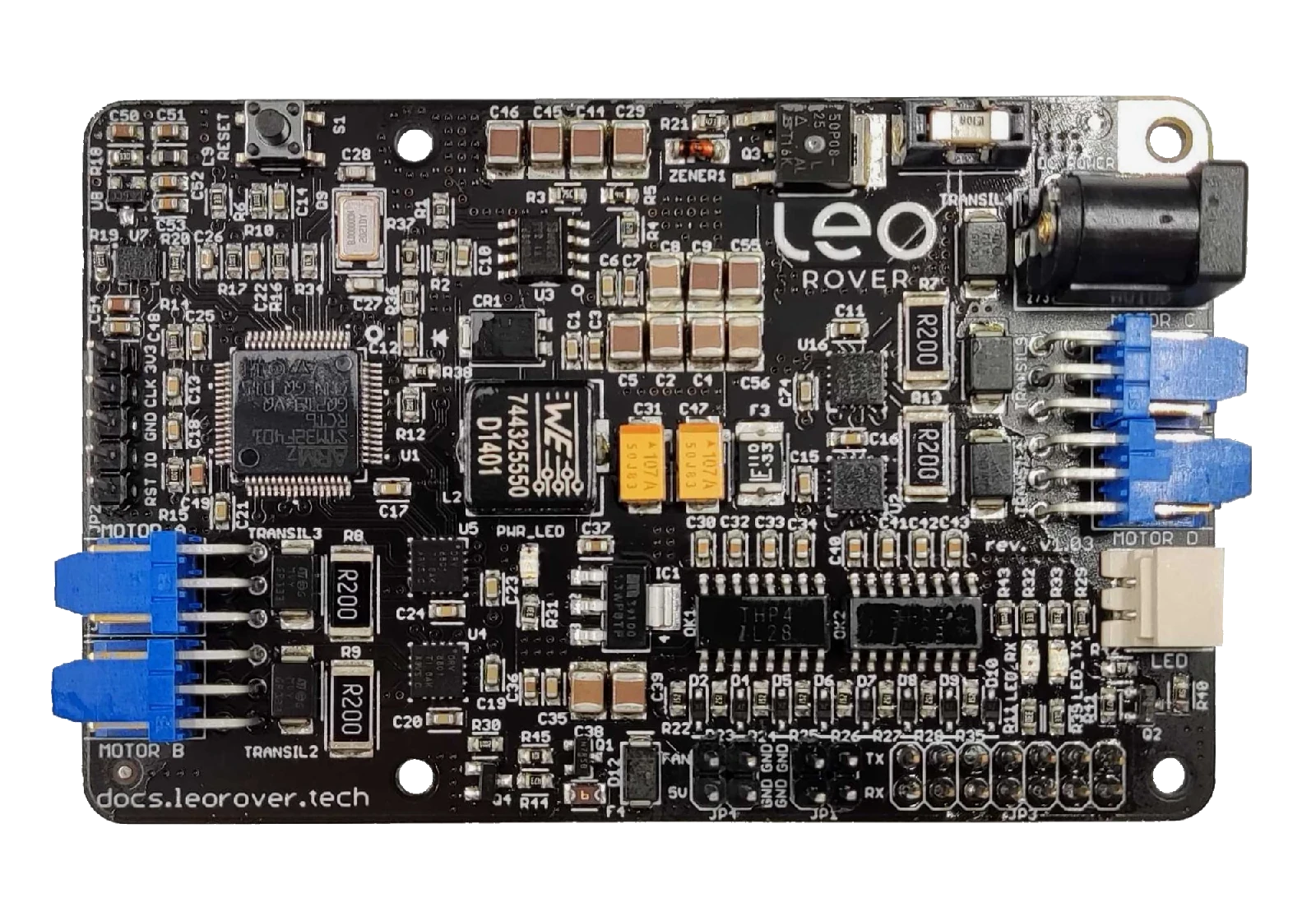
If you are flashing the firmware for the first time, the script won't be able to determine the board type to flash the correct firmware binary. You will be asked to manually choose what board you have:
- 1 - for
LeoCore(the default option - provided in square brackets, after prompt) - 2 - for
Husarion Core2(this board is used in Leo Rover versions < 1.8)
Since Leo Rover 1.9 version you should always choose LeoCore.
After choosing your option, you will see what the firmware version will be installed. You need to confirm that you want to flash this firmware, and the process will start.
If you are just updating the firmware, the script will detect the firmware version and board type. So, you will only need to confirm that you want to flash the firmware.